My BWS Scan looks weird on my tablet
If your BWS scan looks odd on your tablet, this might be the reason:
In some occasions your tablet opens the view for the mobile phone instead of the desktop version.
To change back to desktop view on your device, please follow the instructions below.
Note: We generally recommend to use the E4L/NES System on a Google Chrome browser.
1. Default to desktop mode when using Google Chrome
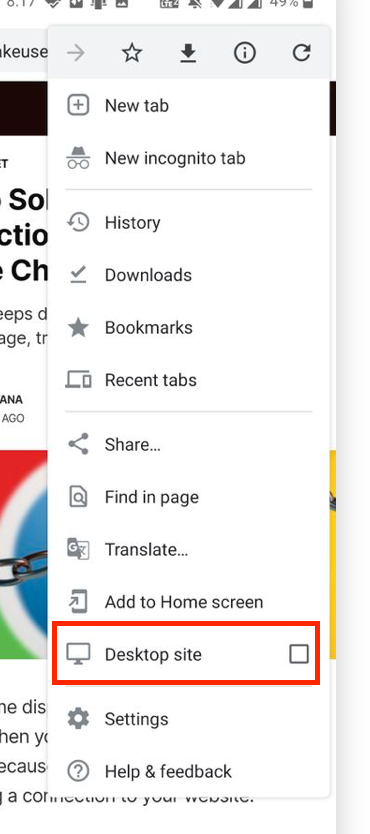
To use the desktop mode in Chrome, open a website in Chrome on your tablet, tap the three dots in the top-right corner, and tick Desktop site. Your site will reload and you should see the desktop version of the site.
2. Default to desktop mode when using Safari
iOS 12 and Below
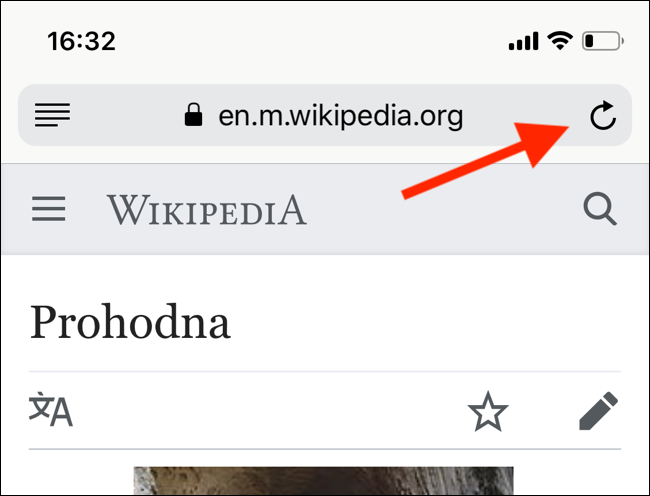
Open the Safari app on your iPhone or iPad and load a website. Now, tap and hold on the “Refresh” button next to the URL bar.
You’ll see a popup at the bottom of the screen. From here, select “Request Desktop Site.”
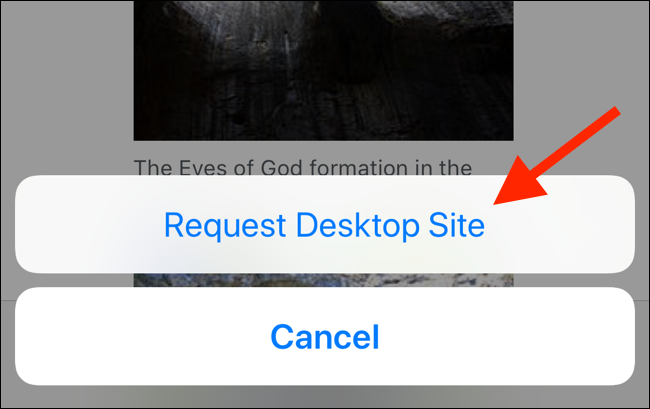
The website will reload, and you’ll now see the desktop version of the site. To go back to the mobile version, tap and hold on the “Refresh” button again and select “Request Mobile Site.”
iOS 13 and Above
Tap on the “Aa” icon next to the URL to see a couple of new menu options. From here, select the “Request Desktop Website” button to open the desktop version of the website.
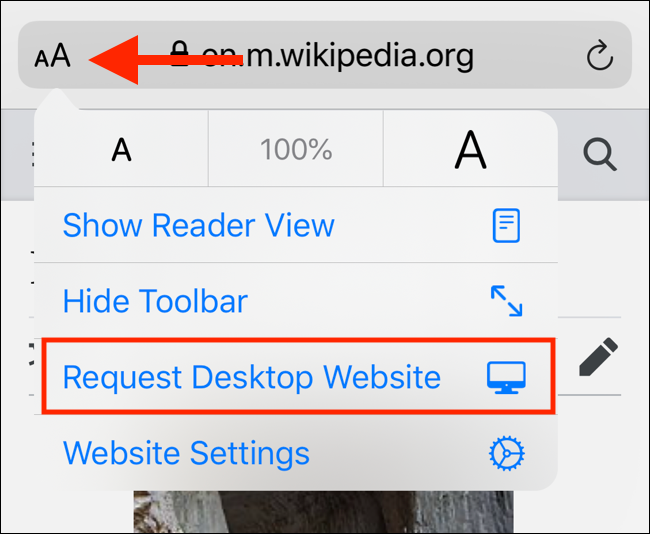
Come back to the same menu to switch back to the mobile version.
3. Default to desktop mode when using Firefox
Open the page you want to view in Firefox.
Tap the menu button.
Toggle the switch next to Desktop site to turn it on and off.